> ## Documentation Index
> Fetch the complete documentation index at: https://docs.traderframe.io/llms.txt
> Use this file to discover all available pages before exploring further.
# Pricing & Subscriptions
> Choose a plan, manage billing, and view your payment methods
## Overview
The **Pricing** page shows all available TraderFrame subscription plans, your current plan status, and options to upgrade, downgrade, cancel, or manage your billing.
**URL:** `/pricing`\
**Manage Subscriptions URL:** `/pricing/manage-subscription`
***
## Pricing Page
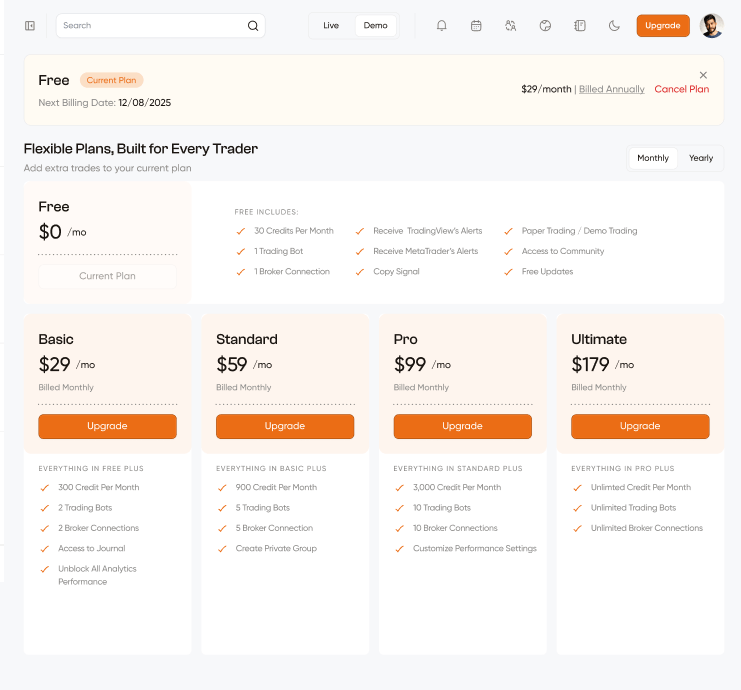 ### Current Plan Banner
A banner at the very top shows your active plan details:
| Element | Description |
| ------------------------- | ------------------------------------------------------------------ |
| **Current plan name** | Your active plan with a "Current Plan" badge (e.g. Free, Ultimate) |
| **Next Billing Date** | Date your plan renews (e.g. Next Billing Date: 12/08/2025) |
| **Price + Billing cycle** | e.g. \$29/month \| Billed Annually |
| **Cancel Plan** | Starts the cancellation flow (red link) |
| **✕ Close** | Hides the banner |
### Plan Toggle
**Monthly / Yearly** toggle at the top right of the plans section. Switching to Yearly shows discounted annual prices with savings badges (e.g. Save 20% a year, Save 40% a year, Save 50% a year).
***
## Pricing Plans
Five plans displayed side by side:
### Free — \$0/mo
**Current Plan** (when on free tier). Includes:
* 30 Credits Per Month
* 1 Trading Bot
* 1 Broker Connection
* Receive TradingView's Alerts
* Receive MetaTrader's Alerts
* Copy Signal
* Paper Trading / Demo Trading
* Access to Community
* Free Updates
### Basic — $29/mo (Billed Monthly) / $23.2/mo (Billed Annually — Save 20%)
**Everything in Free plus:**
* 300 Credit Per Month
* 2 Trading Bots
* 2 Broker Connections
* Access to Journal
* Unblock All Analytics Performance
### Standard — \$59/mo (Billed Monthly)
**Everything in Basic plus:**
* 900 Credit Per Month
* 5 Trading Bots
* 5 Broker Connection
* Create Private Group
### Pro — \$99/mo (Billed Monthly)
**Everything in Standard plus:**
* 3,000 Credit Per Month
* 10 Trading Bots
* 10 Broker Connections
* Customize Performance Settings
### Ultimate — $179/mo (Billed Monthly) / $89.5/mo (Billed Annually — Save 50%)
**Everything in Pro plus:**
* Unlimited Credit Per Month
* Unlimited Trading Bots
* Unlimited Broker Connections
### Plan Buttons
| Button | When shown |
| ---------------- | ----------------------------------------------- |
| **Current Plan** | On your active plan (greyed out, not clickable) |
| **Upgrade** | On any plan higher than your current plan |
| **Downgrade** | On any plan lower than your current plan |
| **Cancel Plan** | On your current paid plan (to cancel) |
***
## Cancel Subscription Flow
### Step 1 — Pause Bots (if you have more active bots than your target plan allows)
### Current Plan Banner
A banner at the very top shows your active plan details:
| Element | Description |
| ------------------------- | ------------------------------------------------------------------ |
| **Current plan name** | Your active plan with a "Current Plan" badge (e.g. Free, Ultimate) |
| **Next Billing Date** | Date your plan renews (e.g. Next Billing Date: 12/08/2025) |
| **Price + Billing cycle** | e.g. \$29/month \| Billed Annually |
| **Cancel Plan** | Starts the cancellation flow (red link) |
| **✕ Close** | Hides the banner |
### Plan Toggle
**Monthly / Yearly** toggle at the top right of the plans section. Switching to Yearly shows discounted annual prices with savings badges (e.g. Save 20% a year, Save 40% a year, Save 50% a year).
***
## Pricing Plans
Five plans displayed side by side:
### Free — \$0/mo
**Current Plan** (when on free tier). Includes:
* 30 Credits Per Month
* 1 Trading Bot
* 1 Broker Connection
* Receive TradingView's Alerts
* Receive MetaTrader's Alerts
* Copy Signal
* Paper Trading / Demo Trading
* Access to Community
* Free Updates
### Basic — $29/mo (Billed Monthly) / $23.2/mo (Billed Annually — Save 20%)
**Everything in Free plus:**
* 300 Credit Per Month
* 2 Trading Bots
* 2 Broker Connections
* Access to Journal
* Unblock All Analytics Performance
### Standard — \$59/mo (Billed Monthly)
**Everything in Basic plus:**
* 900 Credit Per Month
* 5 Trading Bots
* 5 Broker Connection
* Create Private Group
### Pro — \$99/mo (Billed Monthly)
**Everything in Standard plus:**
* 3,000 Credit Per Month
* 10 Trading Bots
* 10 Broker Connections
* Customize Performance Settings
### Ultimate — $179/mo (Billed Monthly) / $89.5/mo (Billed Annually — Save 50%)
**Everything in Pro plus:**
* Unlimited Credit Per Month
* Unlimited Trading Bots
* Unlimited Broker Connections
### Plan Buttons
| Button | When shown |
| ---------------- | ----------------------------------------------- |
| **Current Plan** | On your active plan (greyed out, not clickable) |
| **Upgrade** | On any plan higher than your current plan |
| **Downgrade** | On any plan lower than your current plan |
| **Cancel Plan** | On your current paid plan (to cancel) |
***
## Cancel Subscription Flow
### Step 1 — Pause Bots (if you have more active bots than your target plan allows)
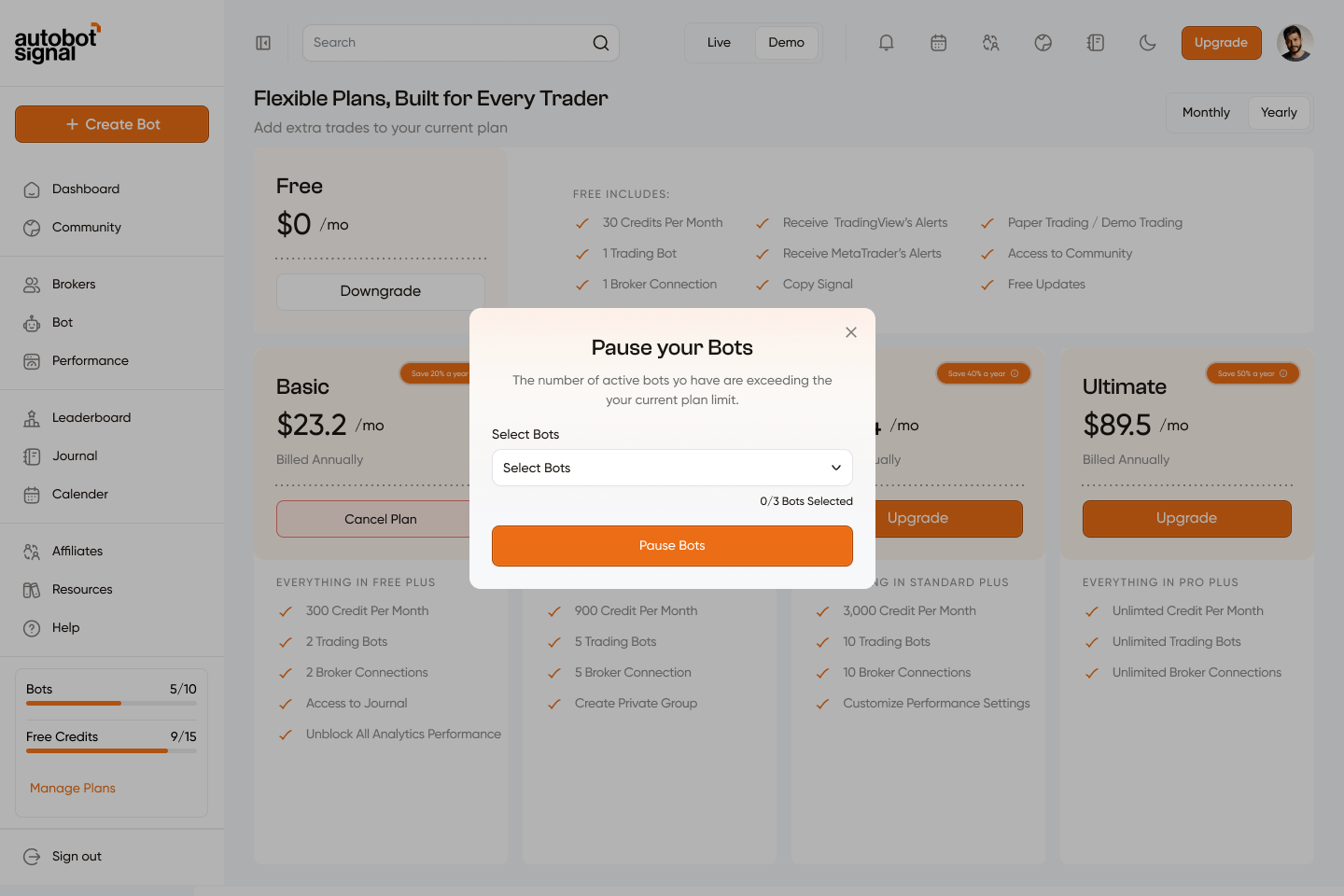 If you are downgrading or cancelling and your active bot count exceeds the new plan's limit, the **"Pause your Bots"** modal appears first:
> "The number of active bots you have are exceeding your current plan limit."
| Element | Description |
| --------------- | --------------------------------------------------------------- |
| **Select Bots** | Dropdown to choose which bots to pause (e.g. 0/3 Bots Selected) |
| **Pause Bots** | Pause the selected bots and proceed |
### Step 2 — Cancel Confirmation
If you are downgrading or cancelling and your active bot count exceeds the new plan's limit, the **"Pause your Bots"** modal appears first:
> "The number of active bots you have are exceeding your current plan limit."
| Element | Description |
| --------------- | --------------------------------------------------------------- |
| **Select Bots** | Dropdown to choose which bots to pause (e.g. 0/3 Bots Selected) |
| **Pause Bots** | Pause the selected bots and proceed |
### Step 2 — Cancel Confirmation
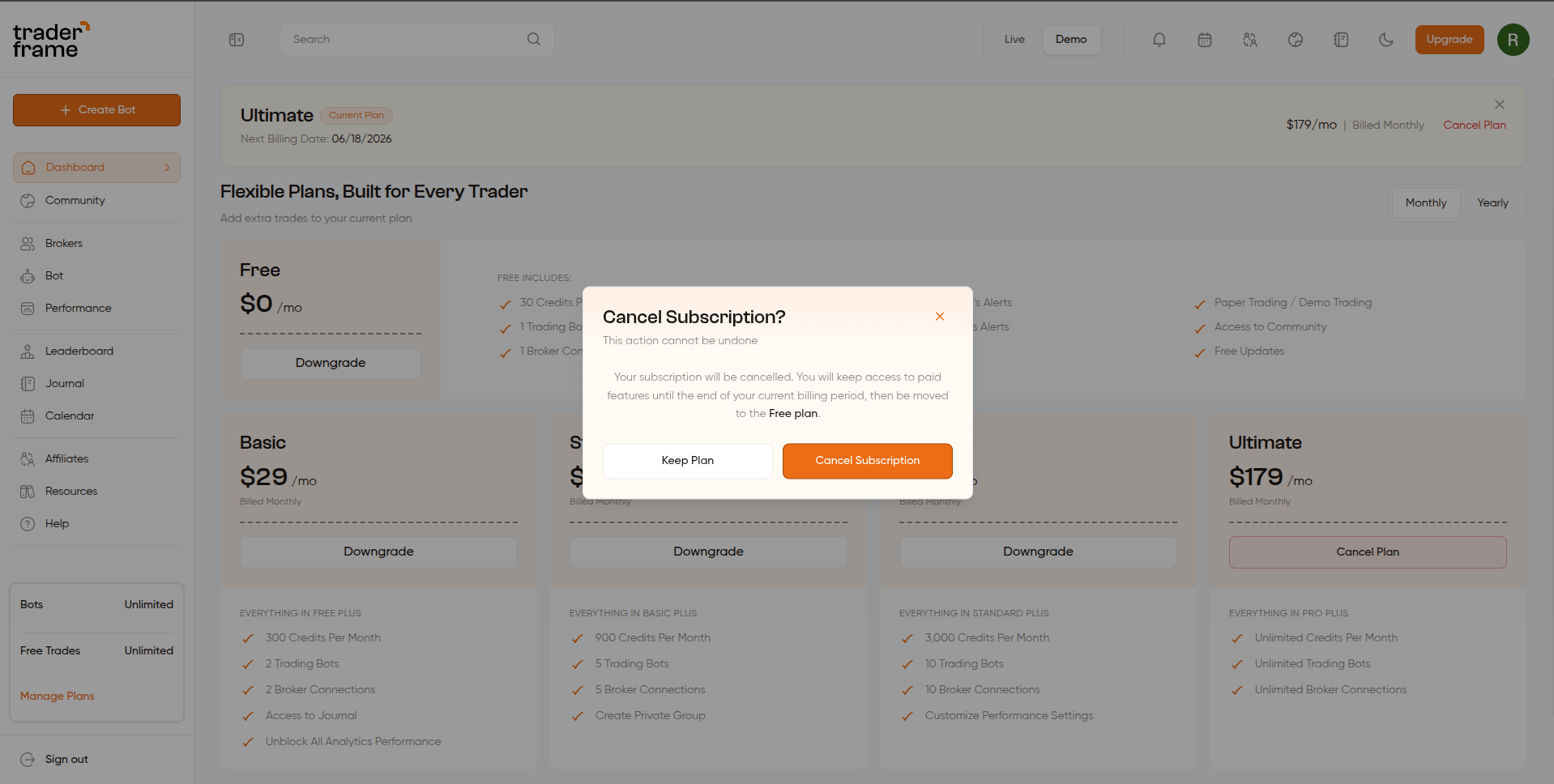 After handling bots (or if no bots need pausing), the **Cancel Subscription?** modal appears:
> "This action cannot be undone. Your subscription will be cancelled. You will keep access to paid features until the end of your current billing period, then be moved to the **Free plan**."
| Button | Action |
| ----------------------- | ------------------------------------------------------------ |
| **Keep Plan** | Dismiss — subscription continues unchanged |
| **Cancel Subscription** | Confirm — subscription is cancelled at end of billing period |
***
## Upgrade / Subscribe Flow
```
Click "Upgrade" on a plan
│
▼
Stripe payment form opens
│
├── Standard cards → payment processes inline
│
└── Indian bank cards (3DS) → full page redirect to bank
│
└── OTP / 3DS completed →
redirected back to /pricing
Subscription activates
```
***
## Manage Subscription (`/pricing/manage-subscription`)
After handling bots (or if no bots need pausing), the **Cancel Subscription?** modal appears:
> "This action cannot be undone. Your subscription will be cancelled. You will keep access to paid features until the end of your current billing period, then be moved to the **Free plan**."
| Button | Action |
| ----------------------- | ------------------------------------------------------------ |
| **Keep Plan** | Dismiss — subscription continues unchanged |
| **Cancel Subscription** | Confirm — subscription is cancelled at end of billing period |
***
## Upgrade / Subscribe Flow
```
Click "Upgrade" on a plan
│
▼
Stripe payment form opens
│
├── Standard cards → payment processes inline
│
└── Indian bank cards (3DS) → full page redirect to bank
│
└── OTP / 3DS completed →
redirected back to /pricing
Subscription activates
```
***
## Manage Subscription (`/pricing/manage-subscription`)
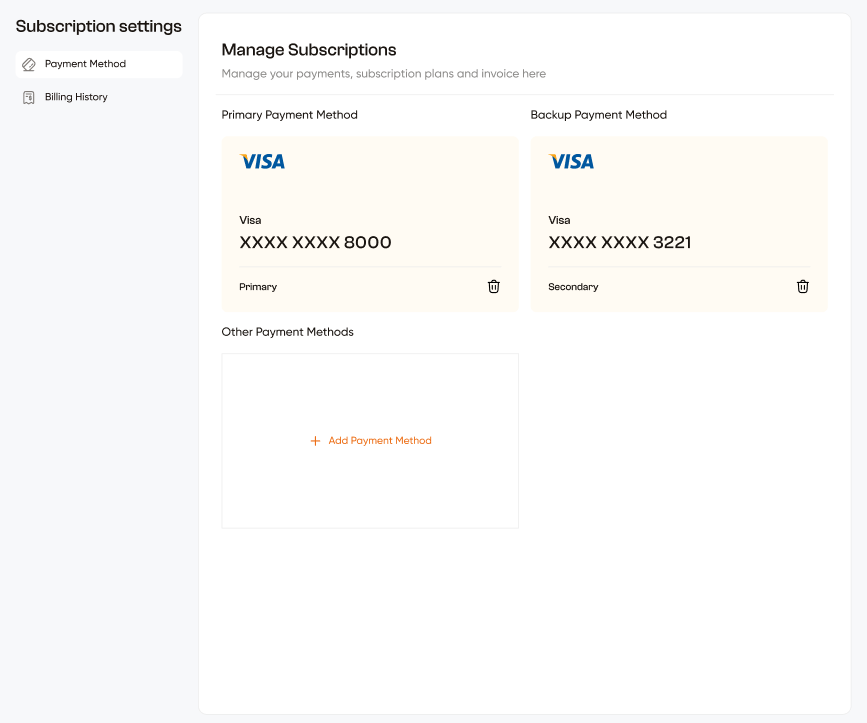 A sidebar-based page for managing your subscription details:
```
┌─────────────────────┬──────────────────────────────┐
│ SIDEBAR │ CONTENT AREA │
│ - Payment Method │ │
│ - Billing History │ │
└─────────────────────┴──────────────────────────────┘
```
### Payment Method Tab
Manage all saved payment cards:
| Section | Description |
| -------------------------- | ----------------------------------------------------------------------------------------- |
| **Primary Payment Method** | Your main card used for billing (e.g. Visa XXXX XXXX 8000) with a delete 🗑 button |
| **Backup Payment Method** | A secondary card used if primary fails (e.g. Visa XXXX XXXX 3221) with a delete 🗑 button |
| **Other Payment Methods** | Additional saved cards |
| **+ Add Payment Method** | Add a new card via Stripe's secure form |
### Billing History Tab
View your complete invoice history:
| Column | Description |
| ----------- | ----------------------------- |
| **Date** | Invoice date |
| **Plan** | Which plan the invoice is for |
| **Amount** | Amount charged |
| **Status** | Paid / Failed / Pending |
| **Invoice** | Download PDF invoice |
A sidebar-based page for managing your subscription details:
```
┌─────────────────────┬──────────────────────────────┐
│ SIDEBAR │ CONTENT AREA │
│ - Payment Method │ │
│ - Billing History │ │
└─────────────────────┴──────────────────────────────┘
```
### Payment Method Tab
Manage all saved payment cards:
| Section | Description |
| -------------------------- | ----------------------------------------------------------------------------------------- |
| **Primary Payment Method** | Your main card used for billing (e.g. Visa XXXX XXXX 8000) with a delete 🗑 button |
| **Backup Payment Method** | A secondary card used if primary fails (e.g. Visa XXXX XXXX 3221) with a delete 🗑 button |
| **Other Payment Methods** | Additional saved cards |
| **+ Add Payment Method** | Add a new card via Stripe's secure form |
### Billing History Tab
View your complete invoice history:
| Column | Description |
| ----------- | ----------------------------- |
| **Date** | Invoice date |
| **Plan** | Which plan the invoice is for |
| **Amount** | Amount charged |
| **Status** | Paid / Failed / Pending |
| **Invoice** | Download PDF invoice |