> ## Documentation Index
> Fetch the complete documentation index at: https://docs.traderframe.io/llms.txt
> Use this file to discover all available pages before exploring further.
# Getting Started
> Create your account, verify your email, and log in to TraderFrame
## Overview
This guide walks you through every step from opening the app for the first time to reaching your dashboard — covering registration, email verification, login, forgot password, and the live/demo account mode toggle.
***
## Complete Auth Flow Diagram
```
┌─────────────────────────────────────────────────────────────────────┐
│ TRADERFRAME AUTH FLOW │
└─────────────────────────────────────────────────────────────────────┘
[ Visit App ]
│
▼
┌─────────────┐ Already logged in? ┌──────────────────┐
│ /auth/login │ ─────── YES ──────────────▶│ /dashboard │
└─────────────┘ └──────────────────┘
│
│ New user?
▼
┌──────────────────┐
│ /auth/register │
│ - Username │
│ - Email │
│ - Password │
│ - Accept Terms │
└──────────────────┘
│
│ Submit
▼
┌───────────────────────────┐
│ /auth/email-verification │
│ Check inbox for link │
│ or Resend email │
└───────────────────────────┘
│
│ Click email link
▼
┌──────────────────┐
│ Email verified │──────────────────────────▶ [ /dashboard ]
└──────────────────┘
LOGIN FLOW
┌─────────────┐
│ /auth/login │
│ - Email │
│ - Password │
│ - Remember │
└─────────────┘
│
├──── Email not verified? ────▶ [ /auth/email-verification ]
│
├──── Admin user? ────────────▶ [ /admin/dashboard ]
│
└──── Regular user? ──────────▶ [ /dashboard ]
SOCIAL LOGIN (Google / Apple)
[ Login or Register page ]
│
│ Click "Sign in with Google" or "Continue with Apple"
▼
[ OAuth popup from Google / Apple ]
│
│ Authorized
▼
Same redirect logic as email/password login
FORGOT PASSWORD FLOW
[ /auth/forgot-password ]
│
│ Enter email → click "Recover Account"
▼
[ Reset email sent to inbox ]
│
│ Click link in email
▼
[ /auth/reset-password ]
│
│ Enter new password
▼
[ /auth/login ] ── success message shown
```
***
## Module 1 — Register
**URL:** `/auth/register`
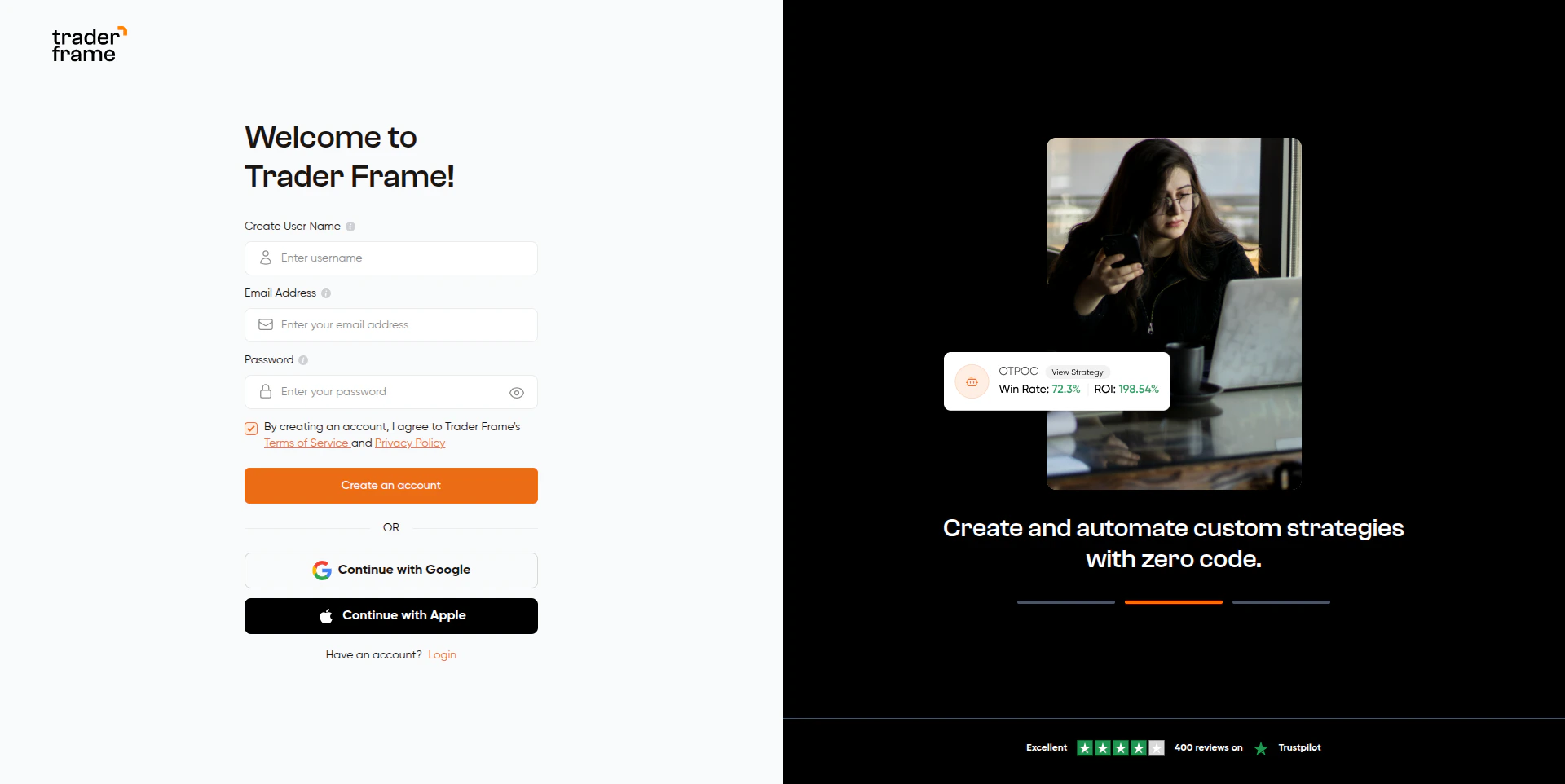 ### Form Fields
| Field / Element | Details |
| ------------------------ | -------------------------------------------------------- |
| **Create User Name** | Minimum 2 characters |
| **Email Address** | Must be a valid email format |
| **Password** | Minimum 6 characters. Toggle eye icon to show/hide |
| **Terms checkbox** | Must be checked — submit button is disabled if unchecked |
| **Create an account** | Primary submit button. Shows spinner while loading |
| **Continue with Google** | OAuth popup via Google |
| **Continue with Apple** | OAuth popup via Apple |
| **Login link** | "Have an account? Login" → navigates to `/auth/login` |
### Step-by-step
Enter a **username** (min 2 characters), your **email address**, and a
**password** (min 6 characters).
Check the **Terms of Service and Privacy Policy** checkbox. The submit
button stays disabled until this is checked.
Click **Create an account**. The button shows a loading spinner while the
request is in progress. All other buttons (Google, Apple) are also disabled
during this time.
On success, you are automatically redirected to `/auth/email-verification`.
Check your inbox for a verification link.
### Validation Rules
| Field | Rule | Error |
| -------- | ------------------ | ------------------------------------------------------- |
| Username | Min 2 characters | "Name must be at least 2 characters" |
| Email | Valid email format | "Invalid email address" |
| Password | Min 6 characters | "Password must be at least 6 characters" |
| Terms | Must be checked | "Please accept the Terms of Service and Privacy Policy" |
## Module 2 — Email Verification
**URL:** `/auth/email-verification`
### Form Fields
| Field / Element | Details |
| ------------------------ | -------------------------------------------------------- |
| **Create User Name** | Minimum 2 characters |
| **Email Address** | Must be a valid email format |
| **Password** | Minimum 6 characters. Toggle eye icon to show/hide |
| **Terms checkbox** | Must be checked — submit button is disabled if unchecked |
| **Create an account** | Primary submit button. Shows spinner while loading |
| **Continue with Google** | OAuth popup via Google |
| **Continue with Apple** | OAuth popup via Apple |
| **Login link** | "Have an account? Login" → navigates to `/auth/login` |
### Step-by-step
Enter a **username** (min 2 characters), your **email address**, and a
**password** (min 6 characters).
Check the **Terms of Service and Privacy Policy** checkbox. The submit
button stays disabled until this is checked.
Click **Create an account**. The button shows a loading spinner while the
request is in progress. All other buttons (Google, Apple) are also disabled
during this time.
On success, you are automatically redirected to `/auth/email-verification`.
Check your inbox for a verification link.
### Validation Rules
| Field | Rule | Error |
| -------- | ------------------ | ------------------------------------------------------- |
| Username | Min 2 characters | "Name must be at least 2 characters" |
| Email | Valid email format | "Invalid email address" |
| Password | Min 6 characters | "Password must be at least 6 characters" |
| Terms | Must be checked | "Please accept the Terms of Service and Privacy Policy" |
## Module 2 — Email Verification
**URL:** `/auth/email-verification`
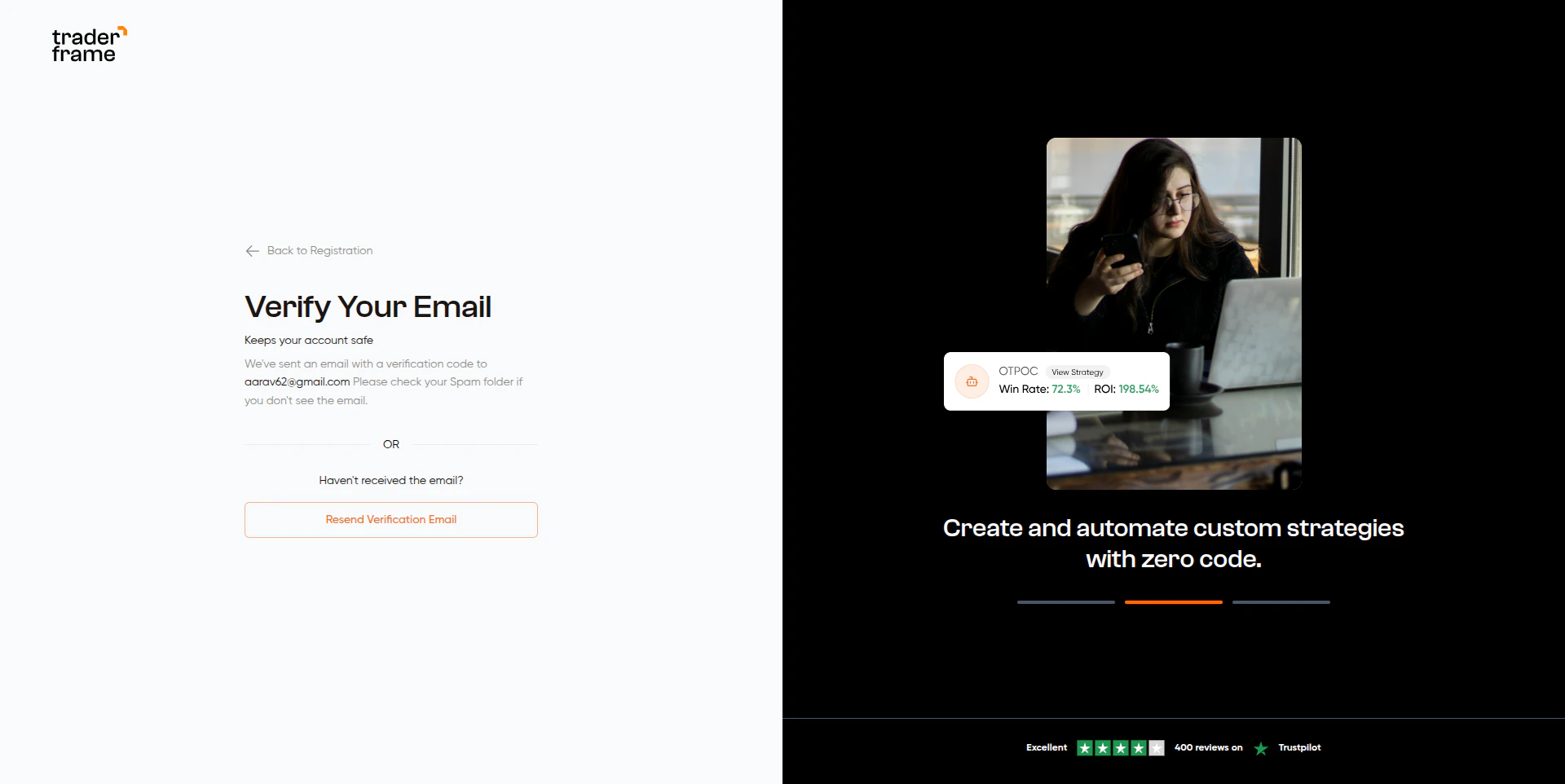 ### What's on this page
| Element | Details |
| ----------------------------- | --------------------------------------------------- |
| **Email display** | Shows the address the verification link was sent to |
| **Resend Verification Email** | Sends a fresh email if the first wasn't received |
| **Back to Registration** | Logs out and returns to `/auth/register` |
### Verification Flow
```
User lands on /auth/email-verification
│
│ Does URL contain ?oobCode= ? (from Firebase email link)
│
├── YES ──▶ Auto-verify on page load
│ │
│ ├── Success ──▶ "Email verified!" → /dashboard (2s delay)
│ └── Failure ──▶ Show error message
│
└── NO ──▶ Show "check your inbox" screen
│
├── User clicks email link ──▶ same auto-verify flow above
│
└── User clicks "Resend"
│
└── New email sent → success message shown
```
### Already Verified?
If the user's email is already verified (detected via Firebase `onAuthStateChanged`), the page shows:
> "Your email is already verified!"
And redirects to `/dashboard` after 1.5 seconds automatically.
***
## Module 3 — Login
**URL:** `/auth/login`
### What's on this page
| Element | Details |
| ----------------------------- | --------------------------------------------------- |
| **Email display** | Shows the address the verification link was sent to |
| **Resend Verification Email** | Sends a fresh email if the first wasn't received |
| **Back to Registration** | Logs out and returns to `/auth/register` |
### Verification Flow
```
User lands on /auth/email-verification
│
│ Does URL contain ?oobCode= ? (from Firebase email link)
│
├── YES ──▶ Auto-verify on page load
│ │
│ ├── Success ──▶ "Email verified!" → /dashboard (2s delay)
│ └── Failure ──▶ Show error message
│
└── NO ──▶ Show "check your inbox" screen
│
├── User clicks email link ──▶ same auto-verify flow above
│
└── User clicks "Resend"
│
└── New email sent → success message shown
```
### Already Verified?
If the user's email is already verified (detected via Firebase `onAuthStateChanged`), the page shows:
> "Your email is already verified!"
And redirects to `/dashboard` after 1.5 seconds automatically.
***
## Module 3 — Login
**URL:** `/auth/login`
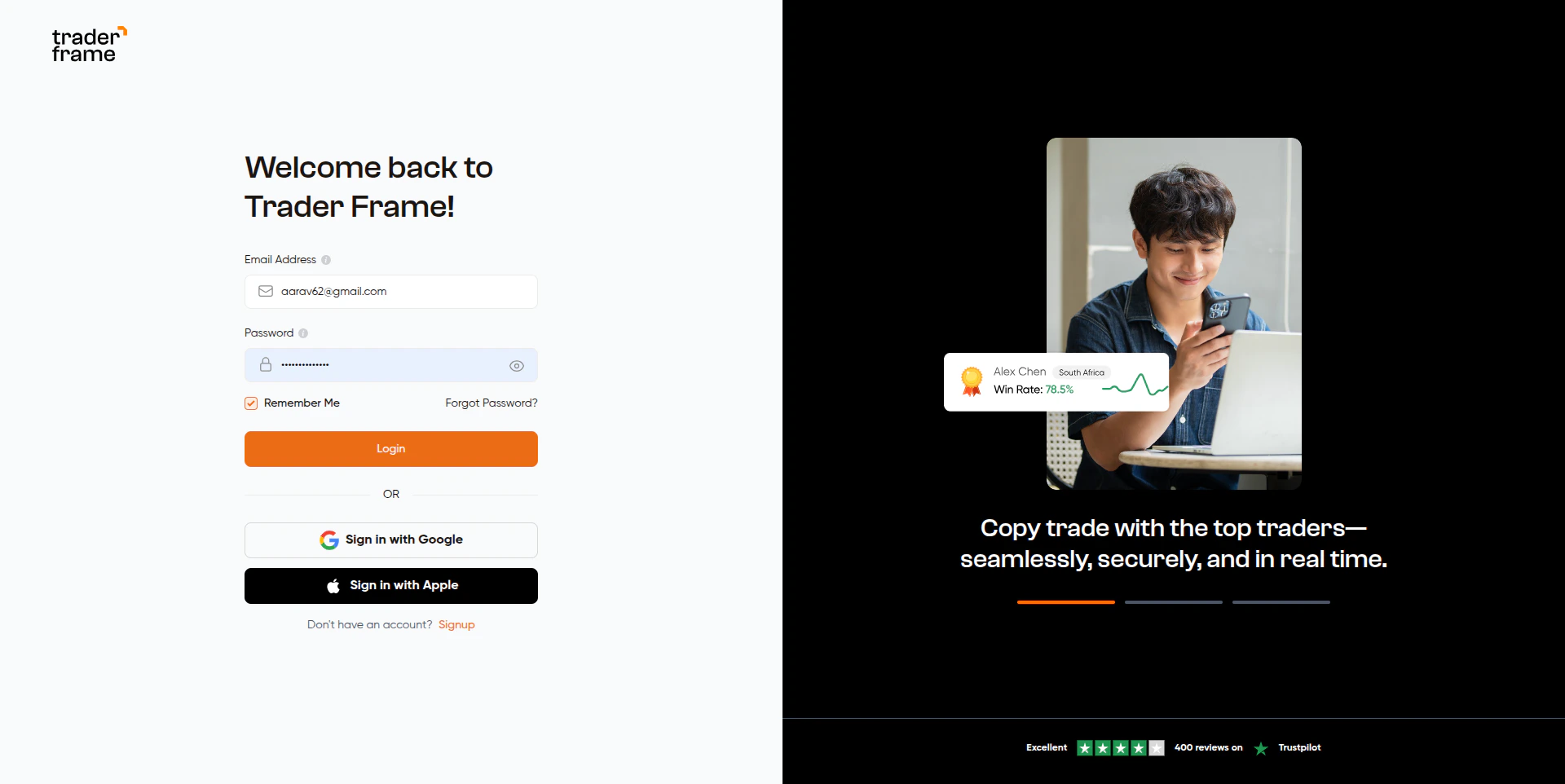 ### Form Fields
| Field / Element | Details |
| ----------------------- | -------------------------------------------------- |
| **Email Address** | Valid email required |
| **Password** | Min 6 characters. Eye icon toggles visibility |
| **Remember Me** | Checked by default. Persists your session |
| **Forgot Password?** | Link → `/auth/forgot-password` |
| **Login** | Primary submit button |
| **Sign in with Google** | OAuth popup |
| **Sign in with Apple** | OAuth popup |
| **Signup link** | "Don't have an account? Signup" → `/auth/register` |
### Step-by-step
Type your **email address** and **password**.
**Remember Me** is on by default. Turn it off if you're on a shared or
public device.
Click **Login**. A loading spinner appears while authenticating.
After successful login, you are redirected based on your account type: -
Email **not verified** → `/auth/email-verification` - **Admin** account →
`/admin/dashboard` - Regular **user** → `/dashboard`
### Redirect Logic
```
Login success
│
├── emailVerified = false ──▶ /auth/email-verification
│
├── user.isAdmin = true ──▶ /admin/dashboard
│
└── regular user ──▶ /dashboard
```
### Validation Rules
| Field | Rule | Error |
| -------- | ----------------------- | ----------------------------------------------------------------- |
| Email | Required + valid format | "Email is required" / "Invalid email address" |
| Password | Required + min 6 chars | "Password is required" / "Password must be at least 6 characters" |
***
## Module 4 — Forgot Password
**URL:** `/auth/forgot-password`
### Form Fields
| Field / Element | Details |
| ----------------------- | -------------------------------------------------- |
| **Email Address** | Valid email required |
| **Password** | Min 6 characters. Eye icon toggles visibility |
| **Remember Me** | Checked by default. Persists your session |
| **Forgot Password?** | Link → `/auth/forgot-password` |
| **Login** | Primary submit button |
| **Sign in with Google** | OAuth popup |
| **Sign in with Apple** | OAuth popup |
| **Signup link** | "Don't have an account? Signup" → `/auth/register` |
### Step-by-step
Type your **email address** and **password**.
**Remember Me** is on by default. Turn it off if you're on a shared or
public device.
Click **Login**. A loading spinner appears while authenticating.
After successful login, you are redirected based on your account type: -
Email **not verified** → `/auth/email-verification` - **Admin** account →
`/admin/dashboard` - Regular **user** → `/dashboard`
### Redirect Logic
```
Login success
│
├── emailVerified = false ──▶ /auth/email-verification
│
├── user.isAdmin = true ──▶ /admin/dashboard
│
└── regular user ──▶ /dashboard
```
### Validation Rules
| Field | Rule | Error |
| -------- | ----------------------- | ----------------------------------------------------------------- |
| Email | Required + valid format | "Email is required" / "Invalid email address" |
| Password | Required + min 6 chars | "Password is required" / "Password must be at least 6 characters" |
***
## Module 4 — Forgot Password
**URL:** `/auth/forgot-password`
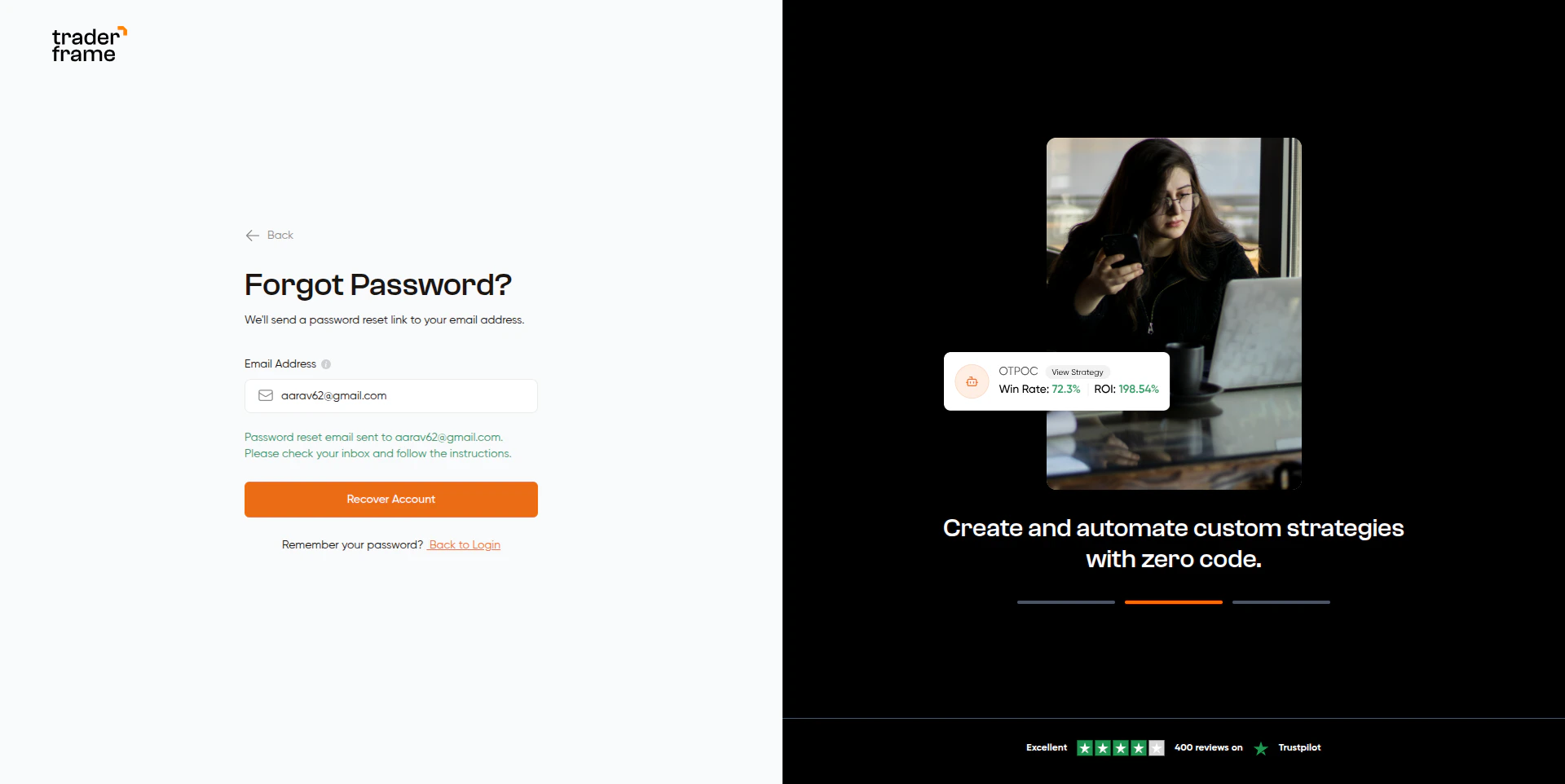 ### What's on this page
| Element | Details |
| ------------------- | ----------------------------------------- |
| **Email Address** | Enter the email linked to your account |
| **Recover Account** | Sends a password reset link to your inbox |
| **Back arrow** | Returns to `/auth/login` |
| **Back to Login** | Text link at the bottom |
### Step-by-step
Click **Forgot Password?** on the login page. You land on `/auth/forgot-password`.
Type the email address registered with your TraderFrame account.
Click **Recover Account**. The button shows a loading spinner while processing.
A green success message appears:
> "Password reset email sent to `your@email.com`. Please check your inbox and follow the instructions."
Open the email and click the reset link.
The link takes you to `/auth/reset-password`. Enter and confirm your new password.
You are redirected to `/auth/login`. Log in with your new credentials.
***
## Module 5 — Live vs Demo Mode
**Location:** Top navigation bar (visible after login)
### What's on this page
| Element | Details |
| ------------------- | ----------------------------------------- |
| **Email Address** | Enter the email linked to your account |
| **Recover Account** | Sends a password reset link to your inbox |
| **Back arrow** | Returns to `/auth/login` |
| **Back to Login** | Text link at the bottom |
### Step-by-step
Click **Forgot Password?** on the login page. You land on `/auth/forgot-password`.
Type the email address registered with your TraderFrame account.
Click **Recover Account**. The button shows a loading spinner while processing.
A green success message appears:
> "Password reset email sent to `your@email.com`. Please check your inbox and follow the instructions."
Open the email and click the reset link.
The link takes you to `/auth/reset-password`. Enter and confirm your new password.
You are redirected to `/auth/login`. Log in with your new credentials.
***
## Module 5 — Live vs Demo Mode
**Location:** Top navigation bar (visible after login)

 ### What it does
After logging in, a **Live / Demo toggle** appears in the top navigation bar. This single switch controls what data is shown across the entire app — Dashboard, Portfolio, Performance, Journal, and Bots all respond to the selected mode.
| Mode | Visual Indicator | Data Shown |
| -------- | ------------------------------ | ---------------------------------------- |
| **Demo** | Default orange theme | Paper trading / simulated broker account |
| **Live** | Upgrade button turns **green** | Real broker account, real funds |
### How to switch
Click **Live** or **Demo** in the top navigation bar. The switch is instant — all sections update immediately with no page reload.
Always confirm which mode is active before making bot changes or placing
trades. **Live mode affects real money.**
***
## All Auth Routes — Quick Reference
| Route | Purpose | Access Control |
| -------------------------- | ------------------------------- | -------------------------------------------- |
| `/auth/register` | New user sign up | Guests only (logged-in users → `/dashboard`) |
| `/auth/email-verification` | Verify email after registration | Open |
| `/auth/login` | Sign in | Guests only (logged-in users → `/dashboard`) |
| `/auth/forgot-password` | Request password reset link | Open |
| `/auth/reset-password` | Set new password via email link | Open |
### What it does
After logging in, a **Live / Demo toggle** appears in the top navigation bar. This single switch controls what data is shown across the entire app — Dashboard, Portfolio, Performance, Journal, and Bots all respond to the selected mode.
| Mode | Visual Indicator | Data Shown |
| -------- | ------------------------------ | ---------------------------------------- |
| **Demo** | Default orange theme | Paper trading / simulated broker account |
| **Live** | Upgrade button turns **green** | Real broker account, real funds |
### How to switch
Click **Live** or **Demo** in the top navigation bar. The switch is instant — all sections update immediately with no page reload.
Always confirm which mode is active before making bot changes or placing
trades. **Live mode affects real money.**
***
## All Auth Routes — Quick Reference
| Route | Purpose | Access Control |
| -------------------------- | ------------------------------- | -------------------------------------------- |
| `/auth/register` | New user sign up | Guests only (logged-in users → `/dashboard`) |
| `/auth/email-verification` | Verify email after registration | Open |
| `/auth/login` | Sign in | Guests only (logged-in users → `/dashboard`) |
| `/auth/forgot-password` | Request password reset link | Open |
| `/auth/reset-password` | Set new password via email link | Open |