> ## Documentation Index
> Fetch the complete documentation index at: https://docs.traderframe.io/llms.txt
> Use this file to discover all available pages before exploring further.
# Copy Trading
> Manage copy trade requests — incoming requests, approved copiers, and your own sent requests
## Overview
The **Copy Trade Settings** page is your control centre for managing copy trading relationships. It handles incoming copy requests from traders who want to copy you, active approved relationships, and requests you have sent to copy other traders.
**URL:** `/copy-trade-settings`
***
## Page Layout
The page uses a left sidebar navigation with three sections:
```
┌────────────────────┬──────────────────────────────────┐
│ SIDEBAR │ CONTENT AREA │
│ - Requests │ (changes per tab) │
│ - Approved │ │
│ Requests │ │
│ - My Requests │ │
└────────────────────┴──────────────────────────────────┘
```
***
## Tab 1 — Requests
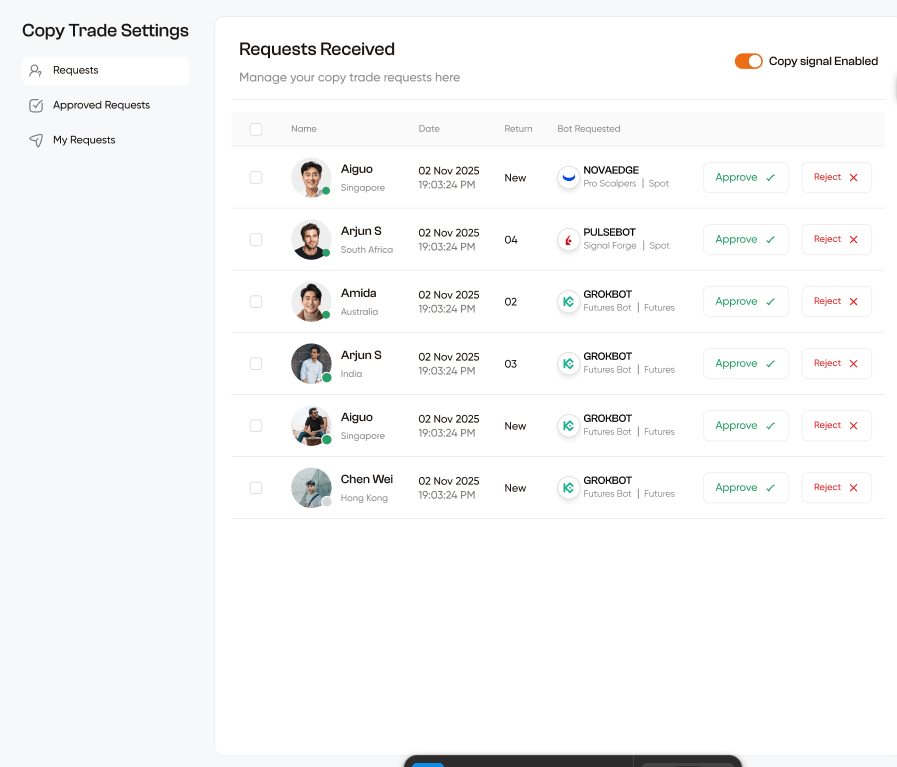 **"Requests Received"** — Manage your copy trade requests here.
A **Copy Signal Enabled** toggle at the top-right controls whether you are accepting new copy requests at all.
### Requests Table
Each incoming request is shown as a table row:
| Column | Description |
| ----------------- | -------------------------------------------------------------------------------------------------------------------------------------- |
| **Checkbox** | Select rows for bulk actions |
| **Name** | Requester's avatar, username, and country (e.g. Aiguo — Singapore) |
| **Date** | Date and time the request was sent (e.g. 02 Nov 2025 19:03:24 PM) |
| **Return** | The requester's return metric — New (first-time request) or a number (e.g. 04, 02, 03) |
| **Bot Requested** | The bot they want to copy — bot name, signal provider, and type (e.g. NOVAEDGE / Pro Scalpers / Spot, GROKBOT / Futures Bot / Futures) |
| **Approve ✓** | Accept the request |
| **Reject ✗** | Decline the request |
### Flow
```
Another trader clicks "Copy Signal" on your bot or profile
│
▼
Request appears in your Requests tab
│
├── Click Approve ✓
│ │
│ └── Request moves to Approved Requests
│ Their bot now mirrors your signals
│
└── Click Reject ✗
│
└── Request removed, no copy link created
```
***
## Tab 2 — Approved Requests
**"Requests Received"** — Manage your copy trade requests here.
A **Copy Signal Enabled** toggle at the top-right controls whether you are accepting new copy requests at all.
### Requests Table
Each incoming request is shown as a table row:
| Column | Description |
| ----------------- | -------------------------------------------------------------------------------------------------------------------------------------- |
| **Checkbox** | Select rows for bulk actions |
| **Name** | Requester's avatar, username, and country (e.g. Aiguo — Singapore) |
| **Date** | Date and time the request was sent (e.g. 02 Nov 2025 19:03:24 PM) |
| **Return** | The requester's return metric — New (first-time request) or a number (e.g. 04, 02, 03) |
| **Bot Requested** | The bot they want to copy — bot name, signal provider, and type (e.g. NOVAEDGE / Pro Scalpers / Spot, GROKBOT / Futures Bot / Futures) |
| **Approve ✓** | Accept the request |
| **Reject ✗** | Decline the request |
### Flow
```
Another trader clicks "Copy Signal" on your bot or profile
│
▼
Request appears in your Requests tab
│
├── Click Approve ✓
│ │
│ └── Request moves to Approved Requests
│ Their bot now mirrors your signals
│
└── Click Reject ✗
│
└── Request removed, no copy link created
```
***
## Tab 2 — Approved Requests
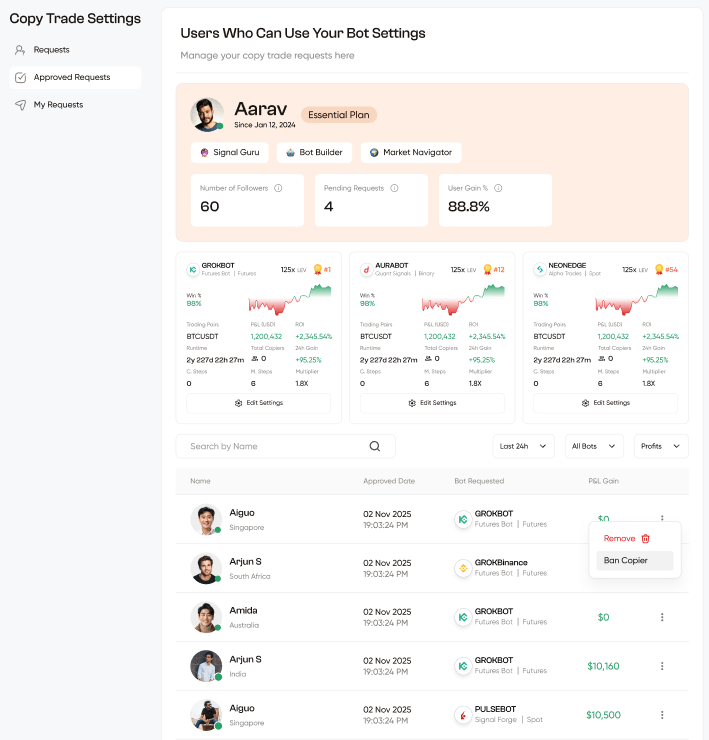 **"Users Who Can Use Your Bot Settings"** — Manage your copy trade requests here.
### Your Profile Summary Card
At the top of this tab, a card shows your own trading profile:
| Element | Description |
| ----------------------- | ------------------------------------------------------------------ |
| **Avatar + Name** | Your profile picture and username (e.g. Aarav) |
| **Plan** | Your current subscription plan badge (e.g. Essential Plan) |
| **Badges** | Your role badges (e.g. Signal Guru, Bot Builder, Market Navigator) |
| **Number of Followers** | Total followers (e.g. 60) |
| **Pending Requests** | Open requests awaiting your action (e.g. 4) |
| **User Gain %** | Average gain % of users who copy you (e.g. 88.8%) |
### Your Bot Cards
Your active bots are shown as cards — same bot card format as the Leaderboard. Each card has an **Edit Settings** button to adjust copy trade settings for that bot.
### Approved Copiers Table
#### Filters
| Filter | Options |
| ------------------ | ------------------------ |
| **Search by Name** | Search copiers by name |
| **Time period** | Last 24h / other periods |
| **All Bots** | Filter by specific bot |
| **Profits** | Sort by profit |
#### Table Columns
| Column | Description |
| ----------------- | ------------------------------------------------------------------------------------------------------------------------------------ |
| **Name** | Copier's avatar, username, and country |
| **Approved Date** | Date and time they were approved |
| **Bot Requested** | The bot they are copying (e.g. GROKBOT / Futures Bot / Futures, GROKBinance / Futures Bot / Futures, PULSEBOT / Signal Forge / Spot) |
| **P\&L Gain** | Their P\&L gain from copying your bot (e.g. $0, $10,160, \$10,500) in green |
| **⋮ Menu** | **Remove** (stop them from copying) or **Ban Copier** |
***
## Tab 3 — My Requests
**"Users Who Can Use Your Bot Settings"** — Manage your copy trade requests here.
### Your Profile Summary Card
At the top of this tab, a card shows your own trading profile:
| Element | Description |
| ----------------------- | ------------------------------------------------------------------ |
| **Avatar + Name** | Your profile picture and username (e.g. Aarav) |
| **Plan** | Your current subscription plan badge (e.g. Essential Plan) |
| **Badges** | Your role badges (e.g. Signal Guru, Bot Builder, Market Navigator) |
| **Number of Followers** | Total followers (e.g. 60) |
| **Pending Requests** | Open requests awaiting your action (e.g. 4) |
| **User Gain %** | Average gain % of users who copy you (e.g. 88.8%) |
### Your Bot Cards
Your active bots are shown as cards — same bot card format as the Leaderboard. Each card has an **Edit Settings** button to adjust copy trade settings for that bot.
### Approved Copiers Table
#### Filters
| Filter | Options |
| ------------------ | ------------------------ |
| **Search by Name** | Search copiers by name |
| **Time period** | Last 24h / other periods |
| **All Bots** | Filter by specific bot |
| **Profits** | Sort by profit |
#### Table Columns
| Column | Description |
| ----------------- | ------------------------------------------------------------------------------------------------------------------------------------ |
| **Name** | Copier's avatar, username, and country |
| **Approved Date** | Date and time they were approved |
| **Bot Requested** | The bot they are copying (e.g. GROKBOT / Futures Bot / Futures, GROKBinance / Futures Bot / Futures, PULSEBOT / Signal Forge / Spot) |
| **P\&L Gain** | Their P\&L gain from copying your bot (e.g. $0, $10,160, \$10,500) in green |
| **⋮ Menu** | **Remove** (stop them from copying) or **Ban Copier** |
***
## Tab 3 — My Requests
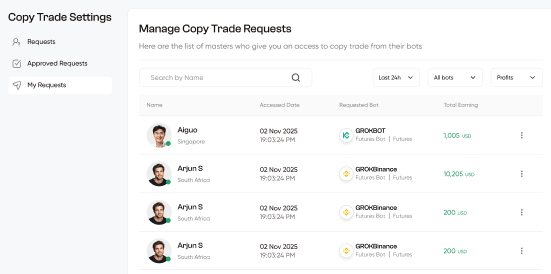 **"Manage Copy Trade Requests"** — Here are the list of masters who give you access to copy trade from their bots.
### Filters
| Filter | Options |
| ------------------ | ------------------------ |
| **Search by Name** | Search by trader name |
| **Time period** | Last 24h / other periods |
| **All Bots** | Filter by bot |
| **Profits** | Sort by profit |
### Table Columns
| Column | Description |
| ----------------- | --------------------------------------------------------------------------------------------------- |
| **Name** | The trader you are copying — avatar, username, country |
| **Accessed Date** | Date and time access was granted (e.g. 02 Nov 2025 19:03:24 PM) |
| **Requested Bot** | The bot you are copying (e.g. GROKBOT / Futures Bot / Futures, GROKBinance / Futures Bot / Futures) |
| **Total Earning** | Total earnings from copying this bot (e.g. 1,005 USD, 10,205 USD, 200 USD) |
| **⋮ Menu** | Additional actions (cancel, manage) |
***
## How to Send a Copy Request
Copy requests are initiated from two places — not from the Copy Trade Settings page itself:
```
Leaderboard
→ Click "Copy Signal" on a trader card or their profile page
→ Request sent → appears in "My Requests" as Pending
```
Once the trader approves:
* Your bot starts receiving and executing their signals
* The relationship appears in **My Requests** with your Total Earning tracking
***
## Full Lifecycle
```
You click "Copy Signal" on a trader
│
▼
Request sent → appears in your My Requests tab
│
▼
Trader sees it in their Requests tab
│
├── They Approve → You appear in their Approved Requests
│ Your bot mirrors their signals
│ Your Total Earning starts tracking
│
└── They Reject → Request ends, no signals forwarded
```
**"Manage Copy Trade Requests"** — Here are the list of masters who give you access to copy trade from their bots.
### Filters
| Filter | Options |
| ------------------ | ------------------------ |
| **Search by Name** | Search by trader name |
| **Time period** | Last 24h / other periods |
| **All Bots** | Filter by bot |
| **Profits** | Sort by profit |
### Table Columns
| Column | Description |
| ----------------- | --------------------------------------------------------------------------------------------------- |
| **Name** | The trader you are copying — avatar, username, country |
| **Accessed Date** | Date and time access was granted (e.g. 02 Nov 2025 19:03:24 PM) |
| **Requested Bot** | The bot you are copying (e.g. GROKBOT / Futures Bot / Futures, GROKBinance / Futures Bot / Futures) |
| **Total Earning** | Total earnings from copying this bot (e.g. 1,005 USD, 10,205 USD, 200 USD) |
| **⋮ Menu** | Additional actions (cancel, manage) |
***
## How to Send a Copy Request
Copy requests are initiated from two places — not from the Copy Trade Settings page itself:
```
Leaderboard
→ Click "Copy Signal" on a trader card or their profile page
→ Request sent → appears in "My Requests" as Pending
```
Once the trader approves:
* Your bot starts receiving and executing their signals
* The relationship appears in **My Requests** with your Total Earning tracking
***
## Full Lifecycle
```
You click "Copy Signal" on a trader
│
▼
Request sent → appears in your My Requests tab
│
▼
Trader sees it in their Requests tab
│
├── They Approve → You appear in their Approved Requests
│ Your bot mirrors their signals
│ Your Total Earning starts tracking
│
└── They Reject → Request ends, no signals forwarded
```