> ## Documentation Index
> Fetch the complete documentation index at: https://docs.traderframe.io/llms.txt
> Use this file to discover all available pages before exploring further.
# Brokers
> Connect, manage, and monitor your broker accounts on TraderFrame
## Overview
The **Brokers** page is where you link your trading accounts to TraderFrame. Once connected, your bots can execute trades and your performance data syncs automatically.
**URL:** `/brokers`
***
## Page Layout
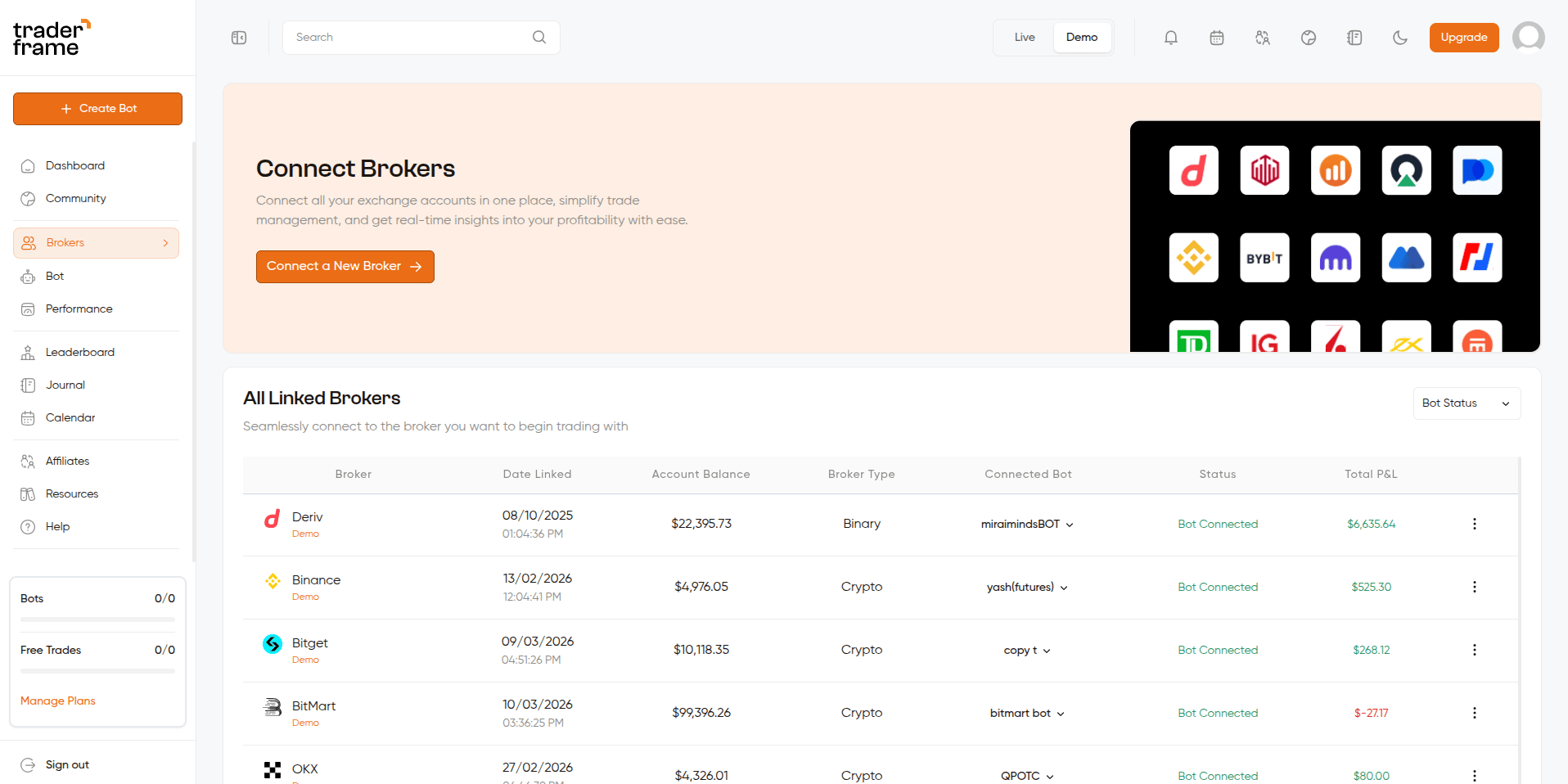 The page has two sections:
* A **Connect Brokers banner** at the top with a "Connect a New Broker" button and a preview of supported broker logos
* The **All Linked Brokers table** below, showing all your connected accounts
***
## Supported Brokers
Clicking "Connect a New Broker" opens the broker selection sidebar, which groups all supported brokers into four categories:
The page has two sections:
* A **Connect Brokers banner** at the top with a "Connect a New Broker" button and a preview of supported broker logos
* The **All Linked Brokers table** below, showing all your connected accounts
***
## Supported Brokers
Clicking "Connect a New Broker" opens the broker selection sidebar, which groups all supported brokers into four categories:
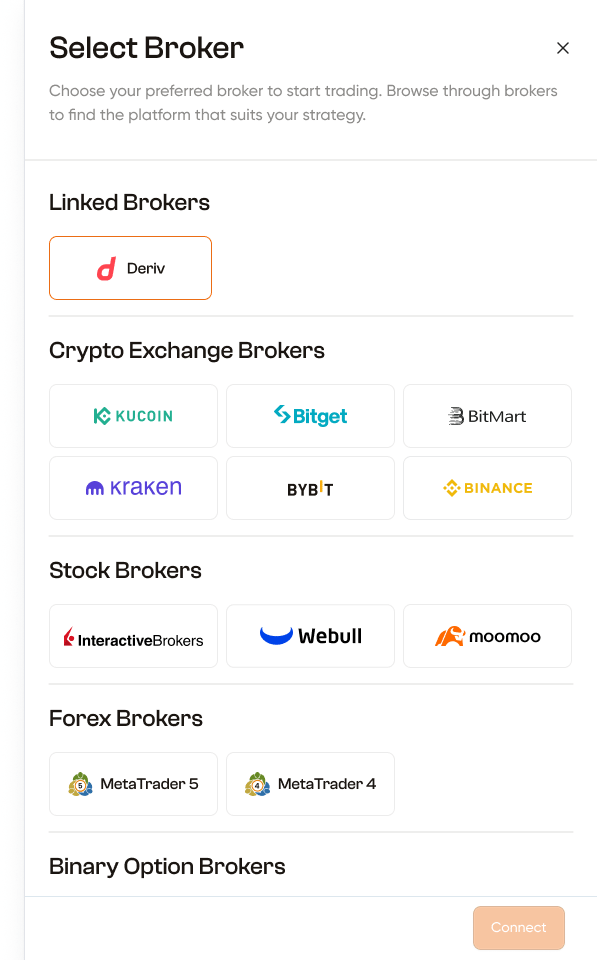 ### Linked Brokers
Already-connected accounts appear at the very top of the sidebar for quick re-selection.
### Crypto Exchange Brokers
| Broker | Connection Method |
| ------- | -------------------------------------------- |
| Binance | API Key + Secret Key |
| KuCoin | OAuth redirect |
| BitMart | OAuth redirect |
| Bitget | Demo: API keys / Real: OAuth redirect |
| OKX | OAuth redirect (with account mode selection) |
### Forex Brokers
| Broker | Notes |
| ------------ | ----------------------------------------------------------- |
| MetaTrader 5 | Generates an EA Token — you install it in your MT5 platform |
| MetaTrader 4 | Generates an EA Token — you install it in your MT4 platform |
### Binary Option Brokers
| Broker | Notes |
| ------ | -------------------- |
| Deriv | API Token connection |
***
## Connect Broker Flow (Full)
Connecting a broker goes through a **phone verification check**, then a **sidebar panel**. The exact steps inside the sidebar depend on which broker you select.
### Step 1 — Phone Verification Check
Before the connect sidebar opens, the app checks if you have a verified phone number:
```
Click "Connect a New Broker"
│
├── Phone number verified AND/OR at least one broker already linked?
│ │
│ └── YES → Open Connect Broker Sidebar directly
│
└── No phone number + no broker linked yet?
│
└── Show Phone Verification Modal
│
├── User verifies phone → Open Connect Broker Sidebar
└── User cancels → Close, nothing happens
```
### Step 2 — Select Broker (Sidebar — "Select Broker" view)
The sidebar opens with grouped sections of available brokers. Linked brokers appear at the top for easy re-selection.
Click on any broker card to select it (card gets an orange border). Then click **Connect** in the footer.
### Step 3 — Broker-Specific Connection (varies by broker)
After clicking Connect, the sidebar switches to the broker's own connection view:
***
#### Deriv — API Token
### Linked Brokers
Already-connected accounts appear at the very top of the sidebar for quick re-selection.
### Crypto Exchange Brokers
| Broker | Connection Method |
| ------- | -------------------------------------------- |
| Binance | API Key + Secret Key |
| KuCoin | OAuth redirect |
| BitMart | OAuth redirect |
| Bitget | Demo: API keys / Real: OAuth redirect |
| OKX | OAuth redirect (with account mode selection) |
### Forex Brokers
| Broker | Notes |
| ------------ | ----------------------------------------------------------- |
| MetaTrader 5 | Generates an EA Token — you install it in your MT5 platform |
| MetaTrader 4 | Generates an EA Token — you install it in your MT4 platform |
### Binary Option Brokers
| Broker | Notes |
| ------ | -------------------- |
| Deriv | API Token connection |
***
## Connect Broker Flow (Full)
Connecting a broker goes through a **phone verification check**, then a **sidebar panel**. The exact steps inside the sidebar depend on which broker you select.
### Step 1 — Phone Verification Check
Before the connect sidebar opens, the app checks if you have a verified phone number:
```
Click "Connect a New Broker"
│
├── Phone number verified AND/OR at least one broker already linked?
│ │
│ └── YES → Open Connect Broker Sidebar directly
│
└── No phone number + no broker linked yet?
│
└── Show Phone Verification Modal
│
├── User verifies phone → Open Connect Broker Sidebar
└── User cancels → Close, nothing happens
```
### Step 2 — Select Broker (Sidebar — "Select Broker" view)
The sidebar opens with grouped sections of available brokers. Linked brokers appear at the top for easy re-selection.
Click on any broker card to select it (card gets an orange border). Then click **Connect** in the footer.
### Step 3 — Broker-Specific Connection (varies by broker)
After clicking Connect, the sidebar switches to the broker's own connection view:
***
#### Deriv — API Token
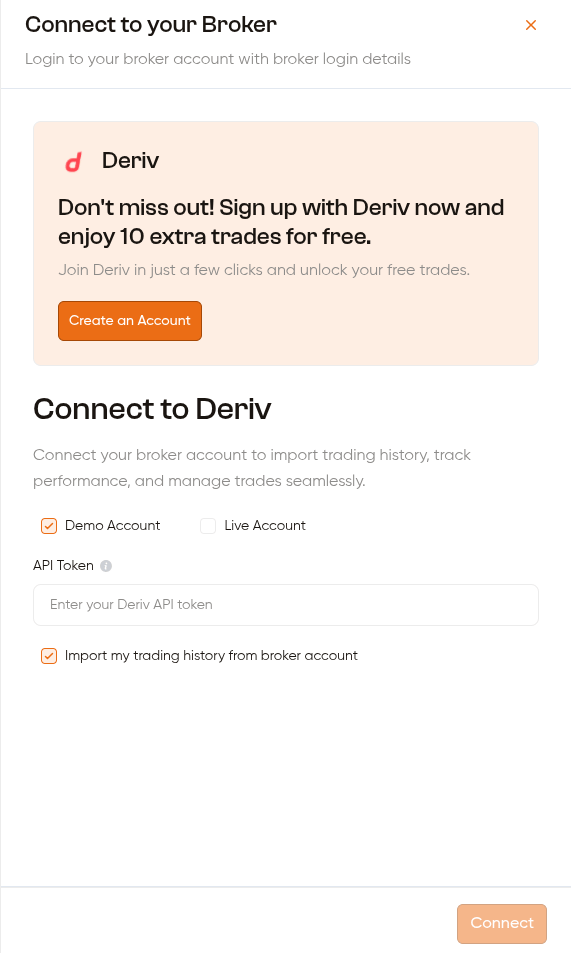 ```
Optional: "Create an Account" link to sign up for Deriv
Select Account Mode: Demo Account or Live Account
Enter API Token (min 10 characters)
Toggle: Import my trading history from broker account (on by default)
Click Connect → success screen
```
#### Binance — API Keys
```
Enter API Key (min 20 characters)
Enter Secret Key (min 20 characters)
Select Account Mode: Demo or Real
Select Trading Type: Spot or Futures
Toggle: Import Trading History
Click Connect → success screen
```
#### KuCoin — OAuth Redirect
```
Click Connect →
Page redirects to KuCoin authorization page
User approves →
Redirected back to /brokers?code=...
App auto-completes connection in the background
URL cleaned up, broker list refreshed
```
#### BitMart — OAuth Redirect
```
Same flow as KuCoin — full page redirect to BitMart,
returns to /brokers with ?code= param,
app auto-connects and refreshes the broker list
```
#### Bitget — Mode-Dependent
```
Select Account Mode first:
├── Demo → Enter API Key + Secret Key + Passphrase → Connect
└── Real → OAuth redirect (same as KuCoin/BitMart flow)
```
#### OKX — Account Mode Selection + OAuth
```
Select Account Mode: Demo or Real
Click Connect →
OAuth redirect to OKX authorization page
Returns to /brokers with ?code= param
App auto-connects and refreshes broker list
```
#### MetaTrader 5 / MetaTrader 4 — EA Token
```
Click Connect →
Backend generates an EA (Expert Advisor) Token
Token is displayed in the sidebar
User copies the token and installs it in their MT5/MT4 platform
Click Done (or Next Step if connecting during bot setup)
```
***
### Step 4 — Success Screen
```
Optional: "Create an Account" link to sign up for Deriv
Select Account Mode: Demo Account or Live Account
Enter API Token (min 10 characters)
Toggle: Import my trading history from broker account (on by default)
Click Connect → success screen
```
#### Binance — API Keys
```
Enter API Key (min 20 characters)
Enter Secret Key (min 20 characters)
Select Account Mode: Demo or Real
Select Trading Type: Spot or Futures
Toggle: Import Trading History
Click Connect → success screen
```
#### KuCoin — OAuth Redirect
```
Click Connect →
Page redirects to KuCoin authorization page
User approves →
Redirected back to /brokers?code=...
App auto-completes connection in the background
URL cleaned up, broker list refreshed
```
#### BitMart — OAuth Redirect
```
Same flow as KuCoin — full page redirect to BitMart,
returns to /brokers with ?code= param,
app auto-connects and refreshes the broker list
```
#### Bitget — Mode-Dependent
```
Select Account Mode first:
├── Demo → Enter API Key + Secret Key + Passphrase → Connect
└── Real → OAuth redirect (same as KuCoin/BitMart flow)
```
#### OKX — Account Mode Selection + OAuth
```
Select Account Mode: Demo or Real
Click Connect →
OAuth redirect to OKX authorization page
Returns to /brokers with ?code= param
App auto-connects and refreshes broker list
```
#### MetaTrader 5 / MetaTrader 4 — EA Token
```
Click Connect →
Backend generates an EA (Expert Advisor) Token
Token is displayed in the sidebar
User copies the token and installs it in their MT5/MT4 platform
Click Done (or Next Step if connecting during bot setup)
```
***
### Step 4 — Success Screen
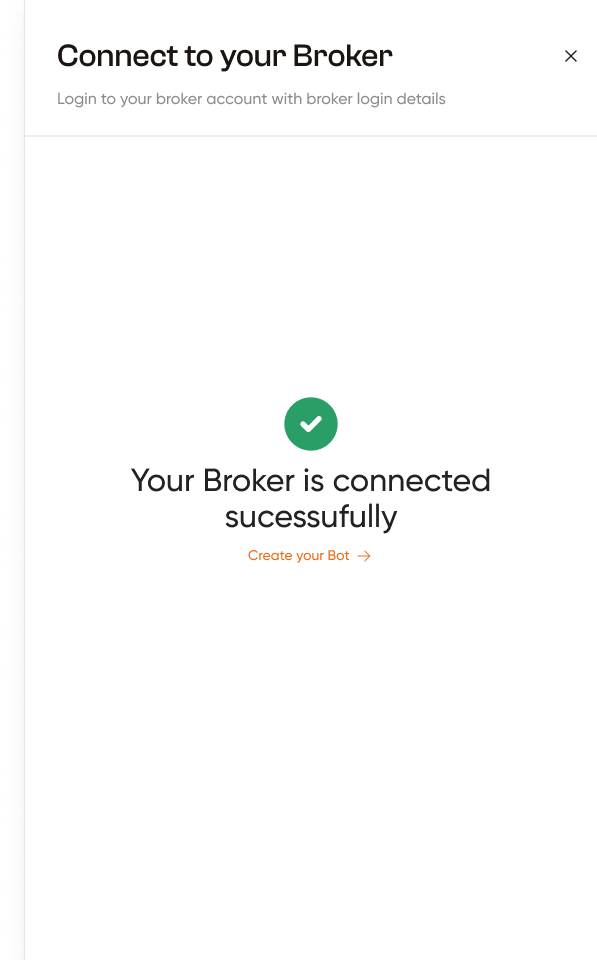 After a successful connection (Deriv, Binance, Bitget demo), a **success screen** is shown inside the sidebar:
```
"Your Broker is connected successfully"
│
├── Coming from bot setup (botId in URL)?
│ └── "Next Step" button → opens Bot Settings panel
│
└── Regular connection (no botId)?
└── "Create your Bot →" link + sidebar closes, broker list refreshes
```
For OAuth brokers (KuCoin, BitMart, Bitget real, OKX), the success happens automatically after the redirect — no separate success screen is shown.
***
## All Linked Brokers Table
After a successful connection (Deriv, Binance, Bitget demo), a **success screen** is shown inside the sidebar:
```
"Your Broker is connected successfully"
│
├── Coming from bot setup (botId in URL)?
│ └── "Next Step" button → opens Bot Settings panel
│
└── Regular connection (no botId)?
└── "Create your Bot →" link + sidebar closes, broker list refreshes
```
For OAuth brokers (KuCoin, BitMart, Bitget real, OKX), the success happens automatically after the redirect — no separate success screen is shown.
***
## All Linked Brokers Table
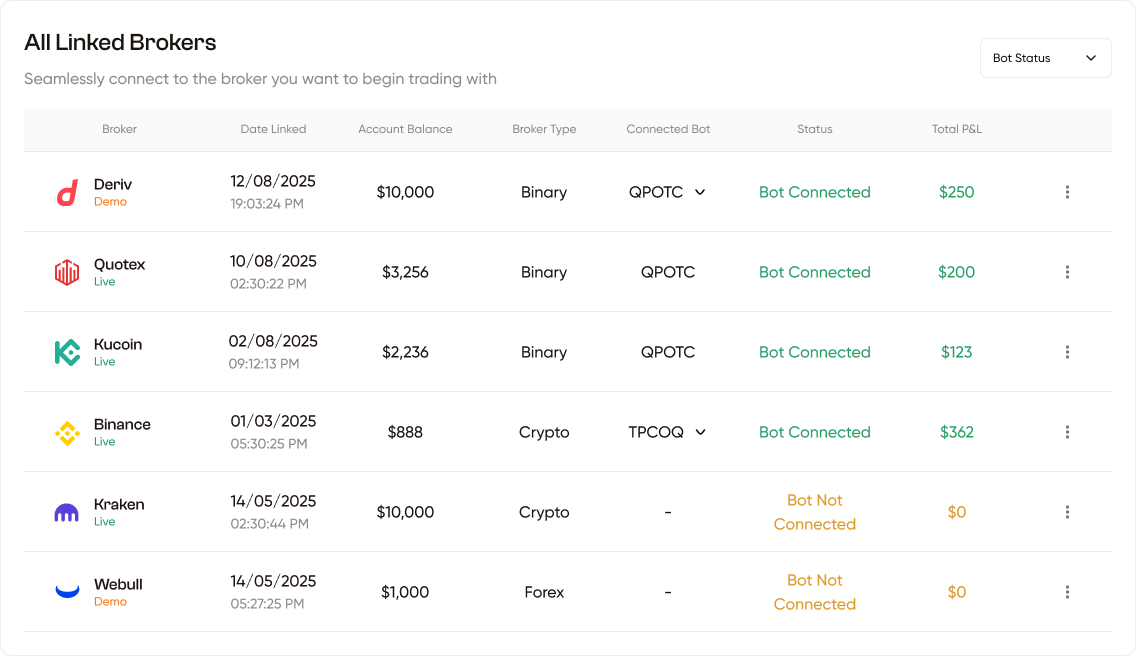 Once brokers are connected, they appear in the **All Linked Brokers** table.
### Table Columns
| Column | Description |
| ------------------- | ------------------------------------------------------------------------------------ |
| **Broker** | Broker logo + name + account mode (orange = demo, green = live) |
| **Date Linked** | Date and time the broker was connected |
| **Account Balance** | Current balance in the broker account |
| **Broker Type** | Binary, Crypto, or Forex |
| **Connected Bot** | Dropdown to select which bot is linked to this broker. Shows `-` if no bot connected |
| **Status** | `Bot Connected` (green) / `Bot Not Connected` (orange) / `Auth Failed` (red) |
| **Total P\&L** | Total profit/loss from this broker account |
| **Actions (⋯)** | Dropdown menu with available actions |
### Bot Status Filter
A **Bot Status** dropdown at the top-right filters the table:
* All
* Bot Connected
* Bot Not Connected
* Auth Failed
### Row Actions (⋯ menu)
| Action | When Available | What It Does |
| ----------------- | ---------------------------------- | -------------------------------------------------------------------------------- |
| **View Bot** | When status is `Bot Connected` | Navigates to `/bot/[botId]` |
| **Connect Bot** | When status is `Bot Not Connected` | Creates a new bot, links it to this broker, navigates to `/create-bot?botId=...` |
| **Unlink Broker** | When status is `Bot Connected` | Opens Unlink Broker modal — removes the bot-broker link only |
| **Delete Broker** | Always | Opens Delete Broker modal — permanently removes the broker connection |
***
## Unlink vs Delete
| Action | Effect |
| ----------------- | --------------------------------------------------------------------------------------------------------------------------- |
| **Unlink Broker** | Removes the connection between the bot and broker. The broker account stays. The bot stops trading but is not deleted. |
| **Delete Broker** | Permanently removes the broker account from TraderFrame. All associated data is deleted. The bot remains but has no broker. |
***
## Empty State
If no brokers are connected, the table shows:
> **"No Brokers Connected"**\
> "You have no broker connected to your account at the moment. Connect to the broker to start your trading."
With a **"Connect a New Broker →"** button that triggers the same connect flow.
Once brokers are connected, they appear in the **All Linked Brokers** table.
### Table Columns
| Column | Description |
| ------------------- | ------------------------------------------------------------------------------------ |
| **Broker** | Broker logo + name + account mode (orange = demo, green = live) |
| **Date Linked** | Date and time the broker was connected |
| **Account Balance** | Current balance in the broker account |
| **Broker Type** | Binary, Crypto, or Forex |
| **Connected Bot** | Dropdown to select which bot is linked to this broker. Shows `-` if no bot connected |
| **Status** | `Bot Connected` (green) / `Bot Not Connected` (orange) / `Auth Failed` (red) |
| **Total P\&L** | Total profit/loss from this broker account |
| **Actions (⋯)** | Dropdown menu with available actions |
### Bot Status Filter
A **Bot Status** dropdown at the top-right filters the table:
* All
* Bot Connected
* Bot Not Connected
* Auth Failed
### Row Actions (⋯ menu)
| Action | When Available | What It Does |
| ----------------- | ---------------------------------- | -------------------------------------------------------------------------------- |
| **View Bot** | When status is `Bot Connected` | Navigates to `/bot/[botId]` |
| **Connect Bot** | When status is `Bot Not Connected` | Creates a new bot, links it to this broker, navigates to `/create-bot?botId=...` |
| **Unlink Broker** | When status is `Bot Connected` | Opens Unlink Broker modal — removes the bot-broker link only |
| **Delete Broker** | Always | Opens Delete Broker modal — permanently removes the broker connection |
***
## Unlink vs Delete
| Action | Effect |
| ----------------- | --------------------------------------------------------------------------------------------------------------------------- |
| **Unlink Broker** | Removes the connection between the bot and broker. The broker account stays. The bot stops trading but is not deleted. |
| **Delete Broker** | Permanently removes the broker account from TraderFrame. All associated data is deleted. The bot remains but has no broker. |
***
## Empty State
If no brokers are connected, the table shows:
> **"No Brokers Connected"**\
> "You have no broker connected to your account at the moment. Connect to the broker to start your trading."
With a **"Connect a New Broker →"** button that triggers the same connect flow.